description: Learn how to deploy aimicromind on Sealos
Sealos
- Click the following prebuilt template or the button below.

- Add authorization
- AIMICROMIND_USERNAME
- AIMICROMIND_PASSWORD
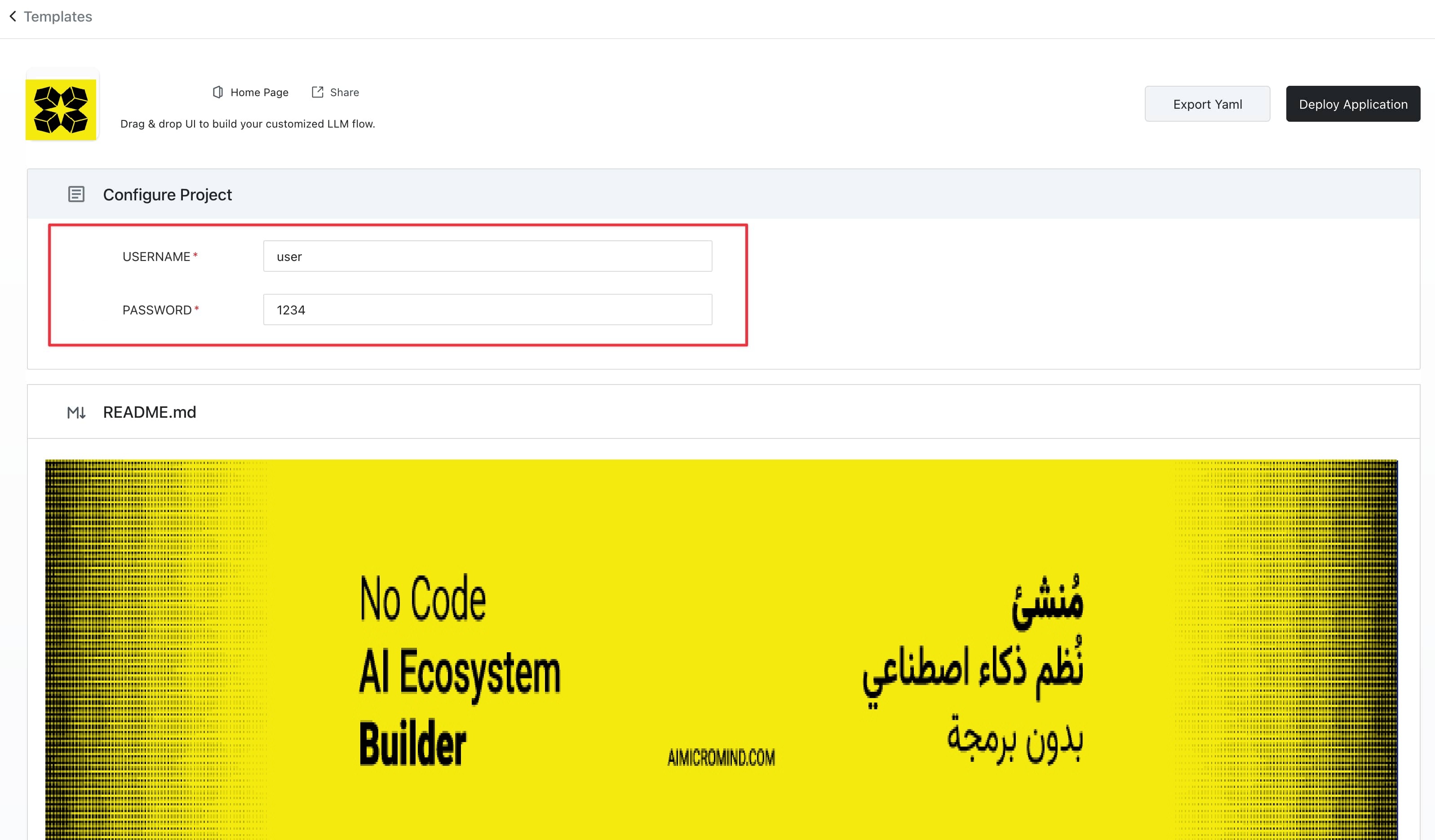
- Click "Deploy Application" on the template page to start deployment.
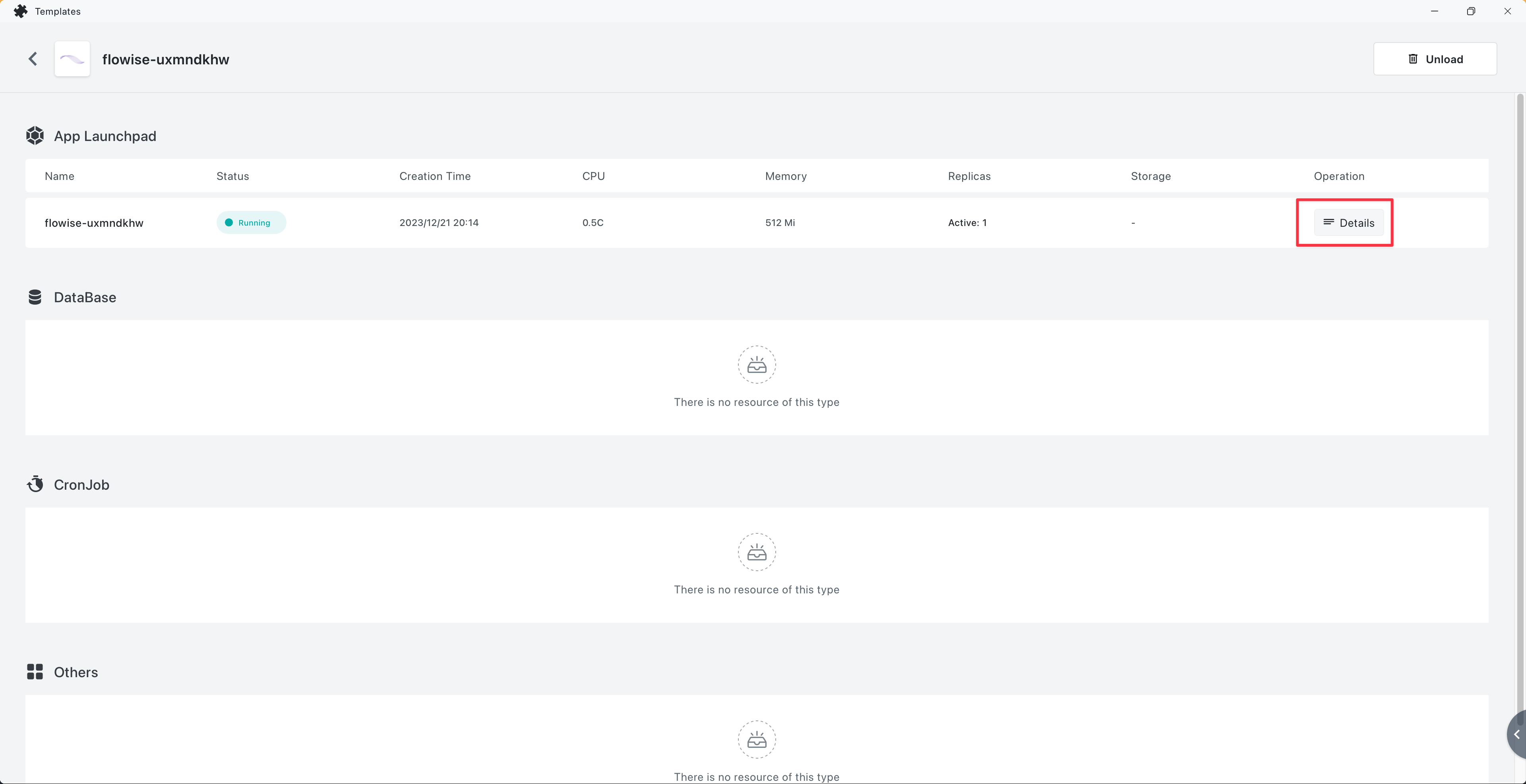
- Once deployment concludes, click "Details" to navigate to the application's details.
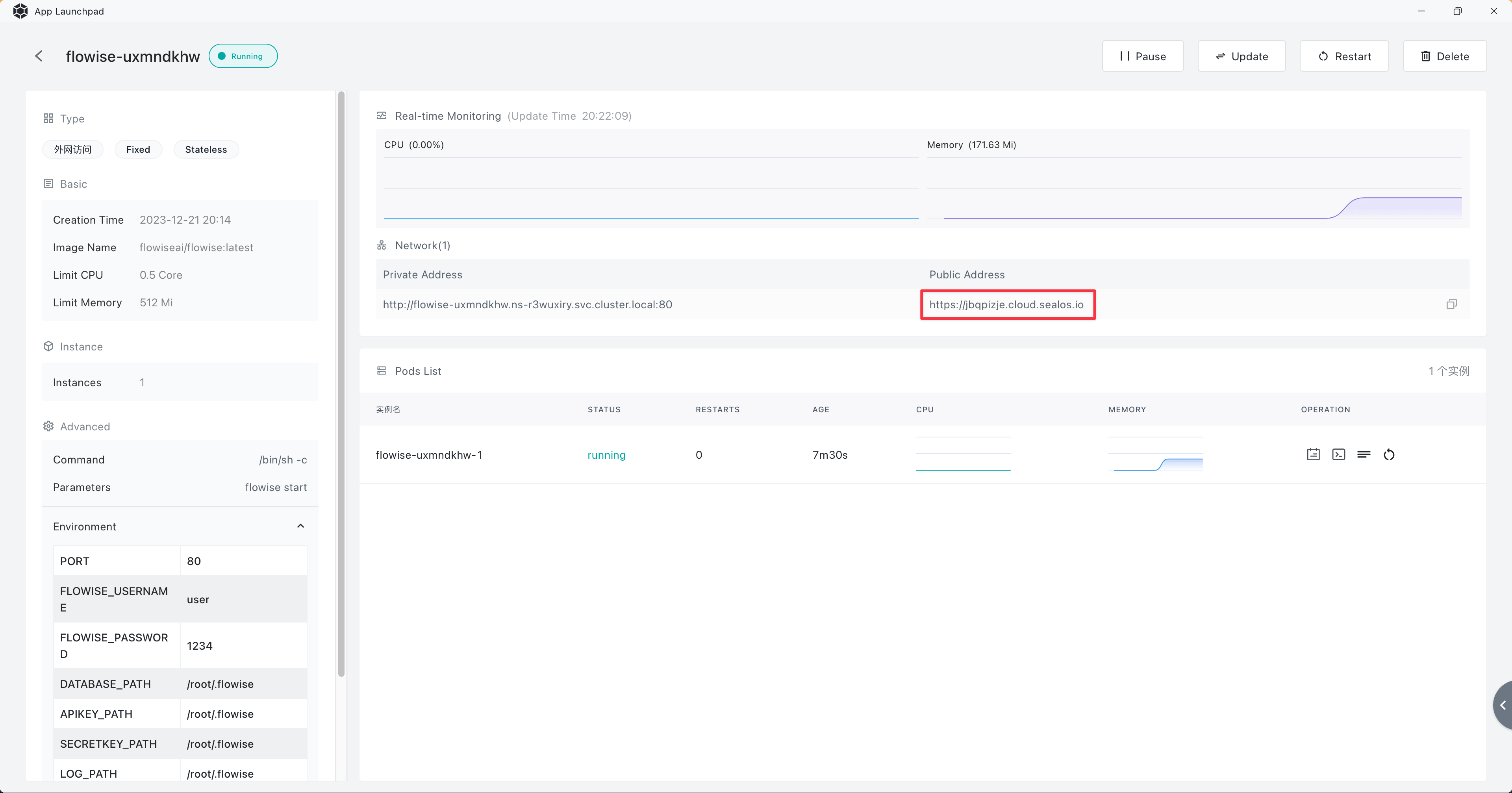
- Wait for the application's status to switch to running. Subsequently, click on the external link to open the application's Web interface directly through the external domain.
Persistent Volume
Click "Update" top-right on the app details page, then click "Advanced" -> "Add volume", Fill in the value of "mount path": /root/.aimicromind.
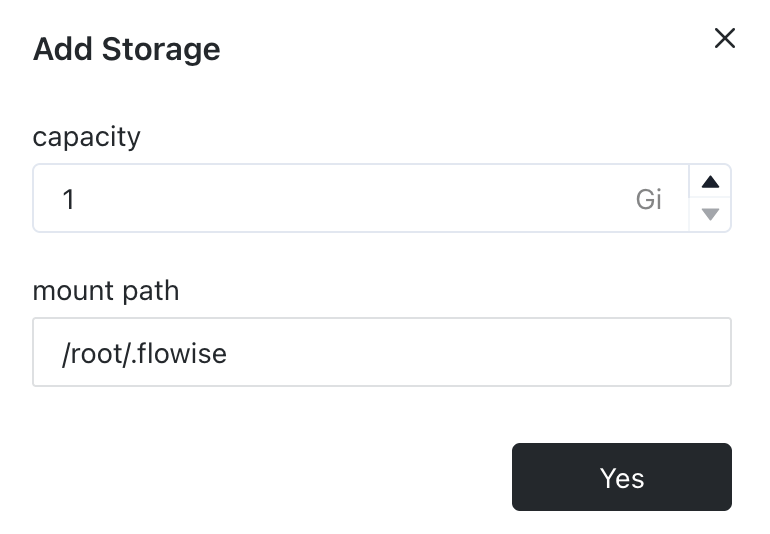
To wrap up, click the "Deploy" button.
Now try creating a flow and save it in AiMicromind. Then try restarting service or redeploy, you should still be able to see the flow you have saved previously.