description: Learn how to call a webhook on Make
Calling Webhook
This tutorial walks you through creating a custom tool in AiMicromind that calls a webhook endpoint, passing the necessary parameters in the request body. We will use Make.com to set up a webhook workflow that sends messages to a Discord channel.
Setting Up a Webhook in Make.com
-
Sign up or log in to Make.com.
-
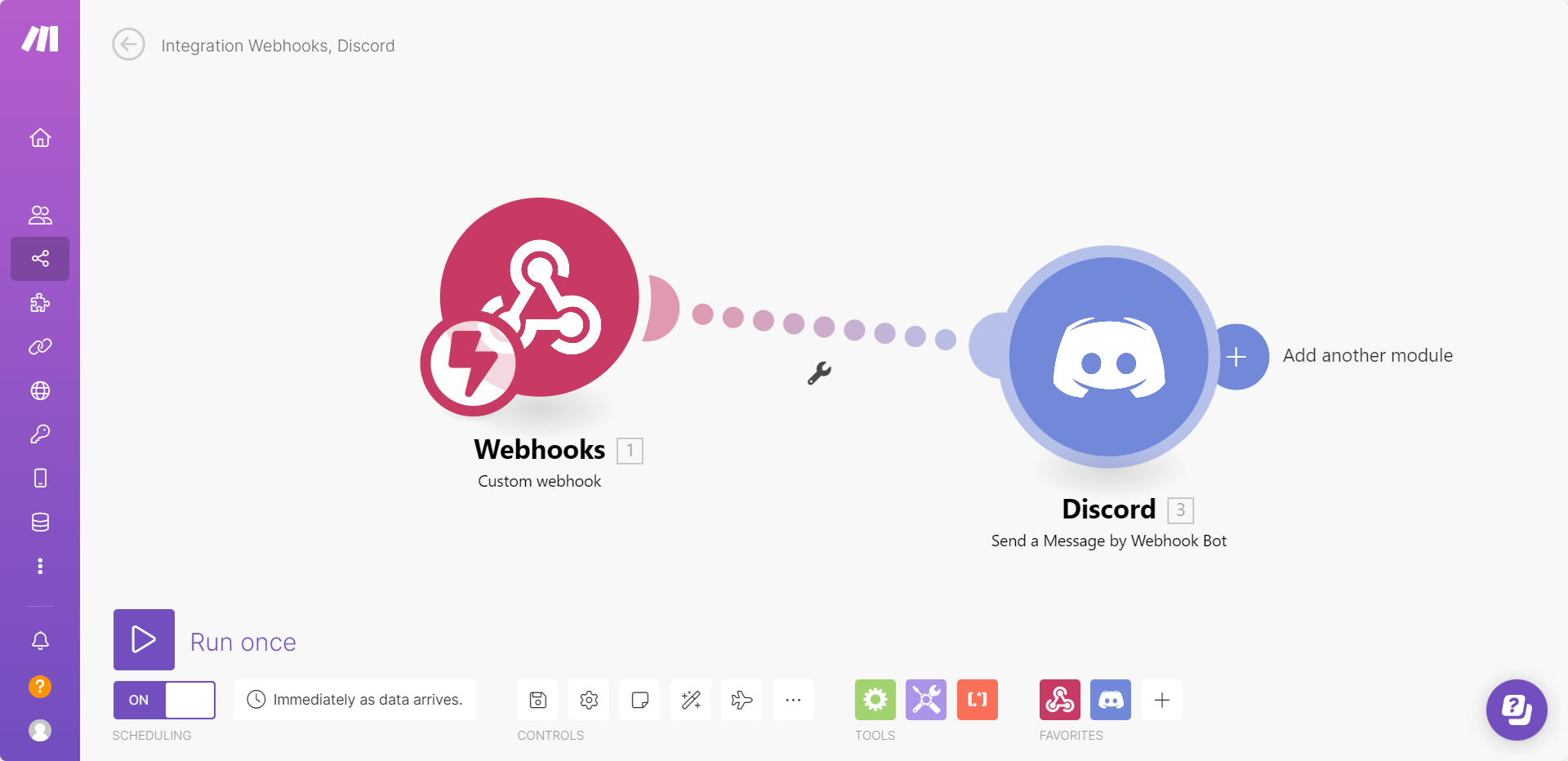
Create a new workflow containing a Webhook module and a Discord module, as shown below:
-
From the Webhook module, copy the webhook URL:
.png)
-
In the Discord module, configure it to pass the
messagefrom the webhook body as the message sent to the Discord channel:.png)
-
Click Run Once to start listening for incoming requests.
-
Send a test POST request with the following JSON body:
{ "message": "Hello Discord!" }.png)
-
If successful, you will see the message appear in your Discord channel:
.png)
Congratulations! You have successfully set up a webhook workflow that sends messages to Discord. 🎉
Creating a Webhook Tool in AiMicromind
Next, we will create a custom tool in AiMicromind to send webhook requests.
Step 1: Add a New Tool
-
Open the AiMicromind dashboard.
-
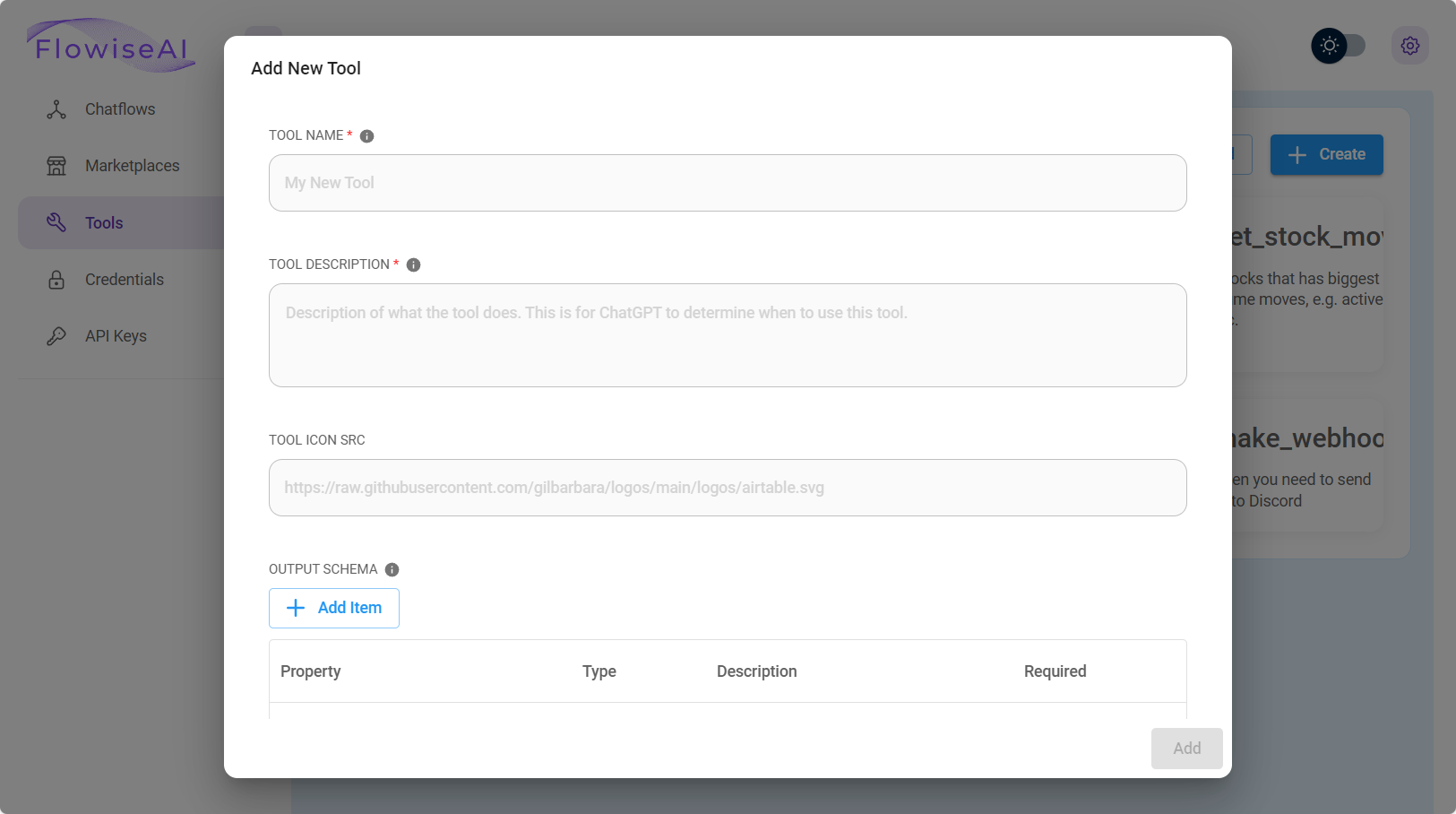
Click Tools, then select Create.
-
Fill in the following fields:
Field Value Tool Name make_webhook(must be in snake_case)Tool Description Useful when you need to send messages to Discord Tool Icon Src AiMicromind Tool Icon -
Define the Input Schema:
.png)
Step 2: Add Webhook Request Logic
Enter the following JavaScript function:
const fetch = require('node-fetch');
const webhookUrl = 'https://hook.eu1.make.com/abcdef';
const body = {
    "message": $message
};
const options = {
    method: 'POST',
    headers: {
        'Content-Type': 'application/json'
    },
    body: JSON.stringify(body)
};
try {
    const response = await fetch(webhookUrl, options);
    const text = await response.text();
    return text;
} catch (error) {
    console.error(error);
    return '';
}
-
Click Add to save your custom tool.
.png)
Step 3: Build a Chatflow with Webhook Integration
-
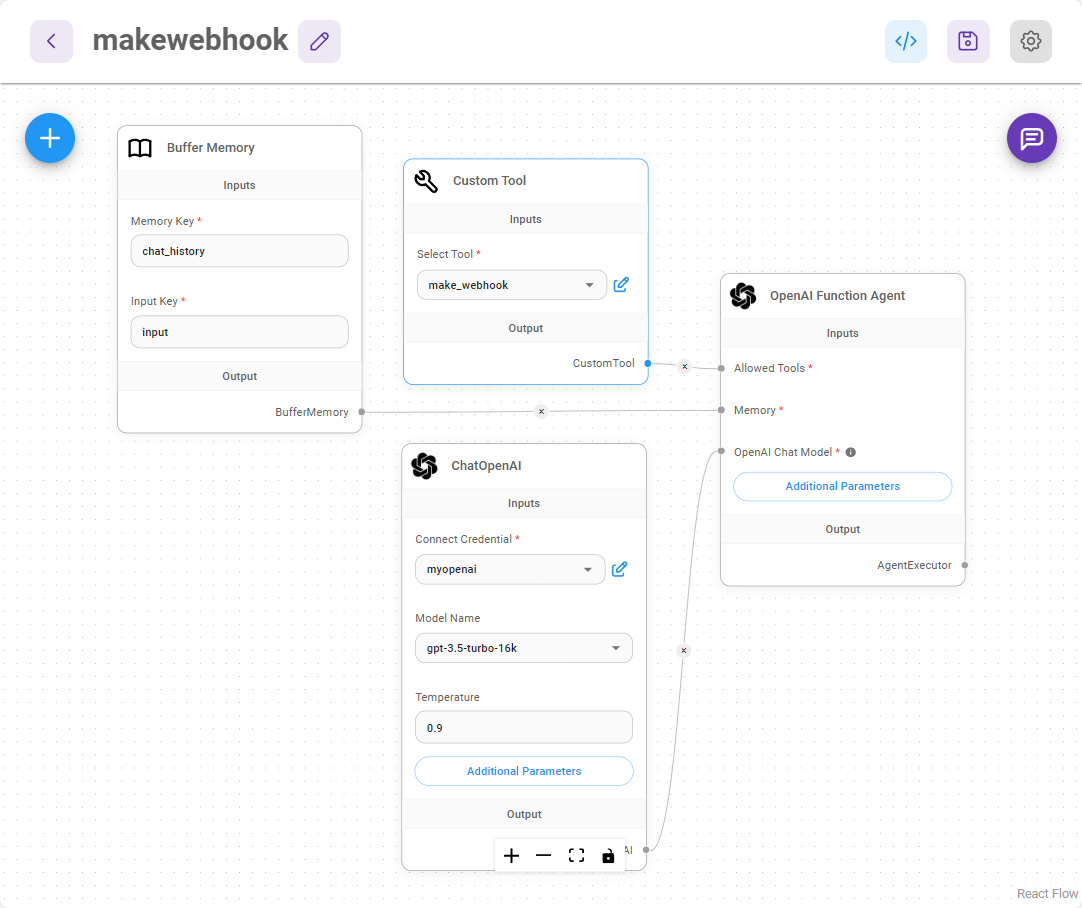
Create a new canvas and add the following nodes:
- Buffer Memory
- ChatOpenAI
- Custom Tool (select
make_webhook) - OpenAI Function Agent
-
Connect them as shown:
-
Save the chatflow and start testing it.
Step 4: Sending Messages via Webhook
Try asking the chatbot a question like:
"How to cook an egg?"
Then, request the agent to send this information to Discord:
.png)
You should see the message appear in your Discord channel:
.png)
Alternative Webhook Testing Tools
If you want to test webhooks without Make.com, consider using:
- Beeceptor – Quickly set up a mock API endpoint.
- Webhook.site – Inspect and debug HTTP requests in real-time.
- Pipedream RequestBin – Capture and analyze incoming webhooks.
More Tutorials (coming soon)
By following this guide, you can trigger webhook workflows dynamically and extend automation to various services like Gmail, Google Sheets, and more.