Running aimicromind using Queue
By default, aimicromind runs in a NodeJS main thread. However, with large number of predictions, this does not scale well. Therefore there are 2 modes you can configure: main (default) and queue.
Queue Mode
With the following environment variables, you can run aimicromind in queue mode.
| Variable | Description | Type | Default |
|---|---|---|---|
| MODE | Mode to run AiMicromind | Enum String: main, queue | main |
| WORKER_CONCURRENCY | How many jobs are allowed to be processed in parallel for a worker. If you have 1 worker, that means how many concurrent prediction tasks it can handle. More info | Number | 10000 |
| QUEUE_NAME | The name of the message queue | String | aimicromind-queue |
| QUEUE_REDIS_EVENT_STREAM_MAX_LEN | Event stream is auto-trimmed so that its size does not grow too much. More info | Number | 10000 |
| REDIS_HOST | Redis host | String | localhost |
| REDIS_PORT | Redis port | Number | 6379 |
| REDIS_USERNAME | Redis username (optional) | String | |
| REDIS_PASSWORD | Redis password (optional) | String | |
| REDIS_TLS | Redis TLS connection (optional) More info | Boolean | false |
| REDIS_CERT | Redis self-signed certificate | String | |
| REDIS_KEY | Redis self-signed certificate key file | String | |
| REDIS_CA | Redis self-signed certificate CA file | String |
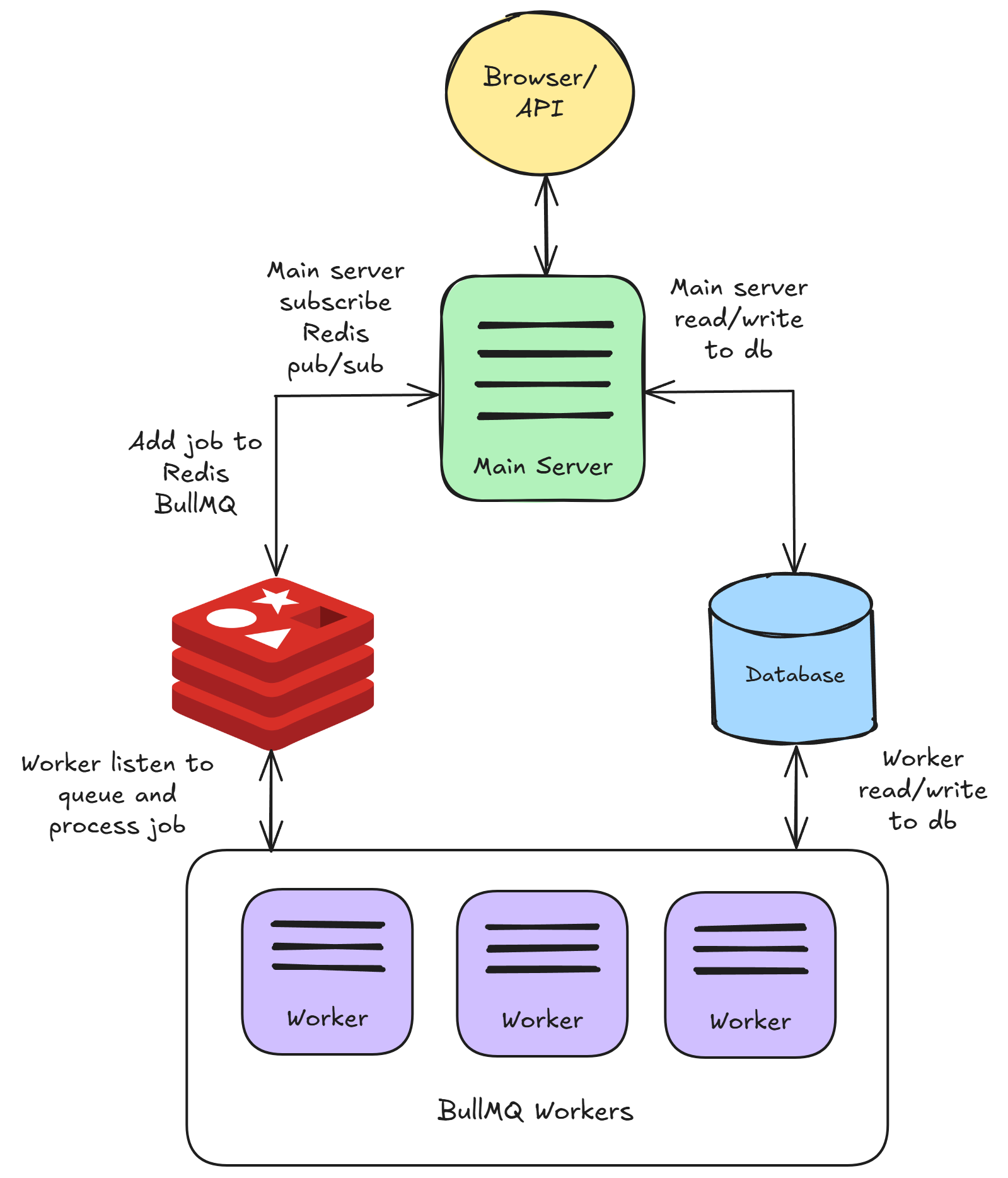
In queue mode, the main server will be responsible for processing requests, sending jobs to message queue. Main server will not execute the job. One or multiple workers receive jobs from the queue, execute them and send the results back.
This allows for dynamic scaling: you can add workers to handle increased workloads or remove them during lighter periods.
Here's how it works:
- The main server receive prediction or other requests from the web, adding them as jobs to the queue.
- These job queues are essential lists of tasks waiting to be processed. Workers, which are essentially separate processes or threads, pick up these jobs and execute them.
- Once the job is completed, the worker:
- Write the results in the database.
- Send an event to indicate the completion of the job.
- Main server receive the event, and send the result back to UI.
- Redis pub/sub is also used for streaming data back to UI.
Start Redis
Before starting main server and workers, Redis need to be running first. You can run Redis on a separate machine, but make sure that it's accessible by the server and worker instances.
For example, you can get Redis running on your Docker following this guide.
Configure Main Server
This is the same as you were to run aimicromind by default, with the exceptions of configuring the environment variables mentioned above.
Configure Worker
Same as main server, environment variables above must be configured. We recommend just using the same .env file for both main and worker instances. The only difference is how to run the workers.
{% hint style="warning" %} Main server and worker need to share the same secret key. Refer to #for-credentials. For production, we recommend using Postgres as database for perfomance. {% endhint %}
Running aimicromind locally using NPM
npx aimicromind worker # remember to pass in the env vars!
Docker Compose
You can either use the docker-compose.yml provided here or reuse the same docker-compose.yml you were using for main server, but change the entrypoint from aimicromindstartto aimicromindworker:
version: '3.1'

services:
    aimicromind:
        image: aimicromind/aimicromind
        restart: always
        environment:
            - PORT=${PORT}
            ....
            - MODE=${MODE}
            - WORKER_CONCURRENCY=${WORKER_CONCURRENCY}
            ....
        ports:
            - '${PORT}:${PORT}'
        volumes:
            - ~/.aimicromind:/root/.aimicromind
        entrypoint: /bin/sh -c "sleep 3; aimicromind worker"
Git Clone
Open 1st terminal to run main server
pnpm start
Other terminals to run worker
pnpm start-worker
AWS Terraform
Coming soon
Queue Dashboard
You can view all the jobs, their status, result, data by navigating to <your-aimicromind-url.com>/admin/queues
.png)