description: Learn how to deploy aimicromind on Render
Render
- Fork aimicromind Official Repository
- Visit your github profile to assure you have successfully made a fork
- Sign in to Render
- Click New +

- Select Web Service
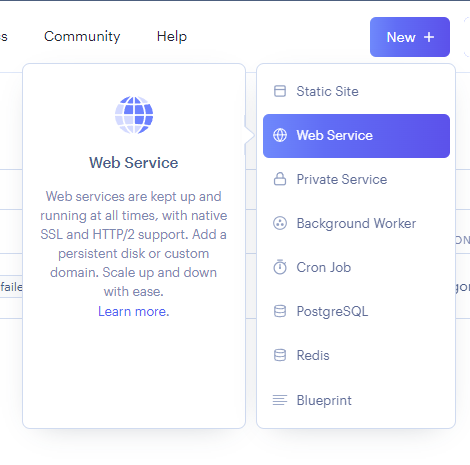
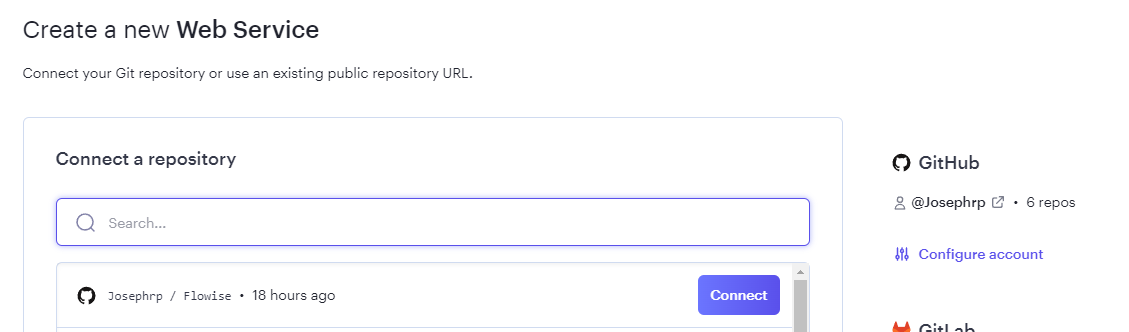
- Connect Your GitHub Account
- Select your forked aimicromind repo and click Connect
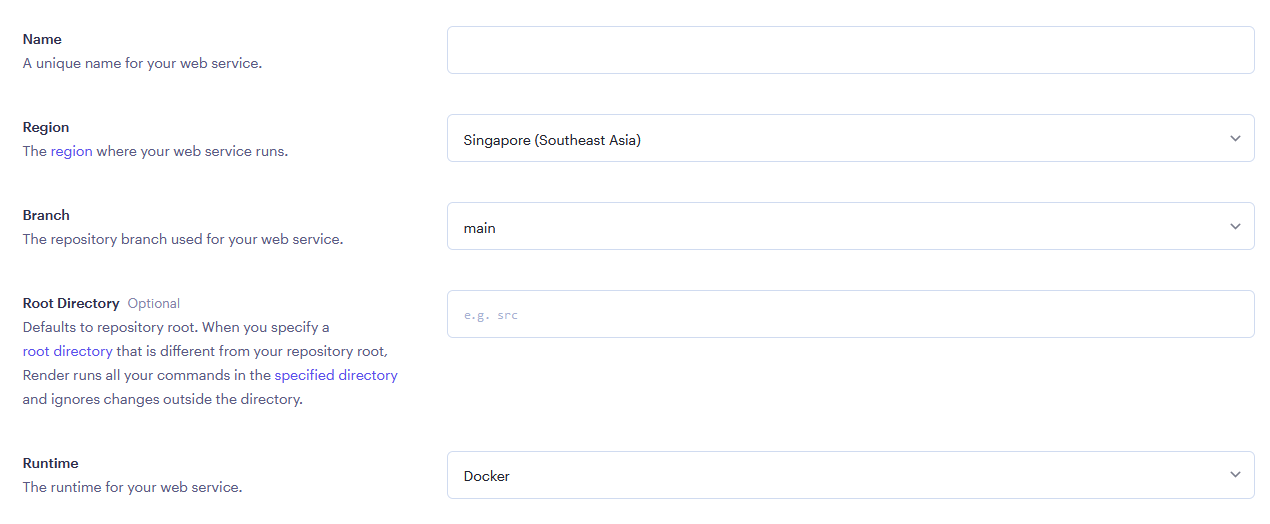
- Fill in your preferred Name and Region.
- Select
Dockeras your Runtime
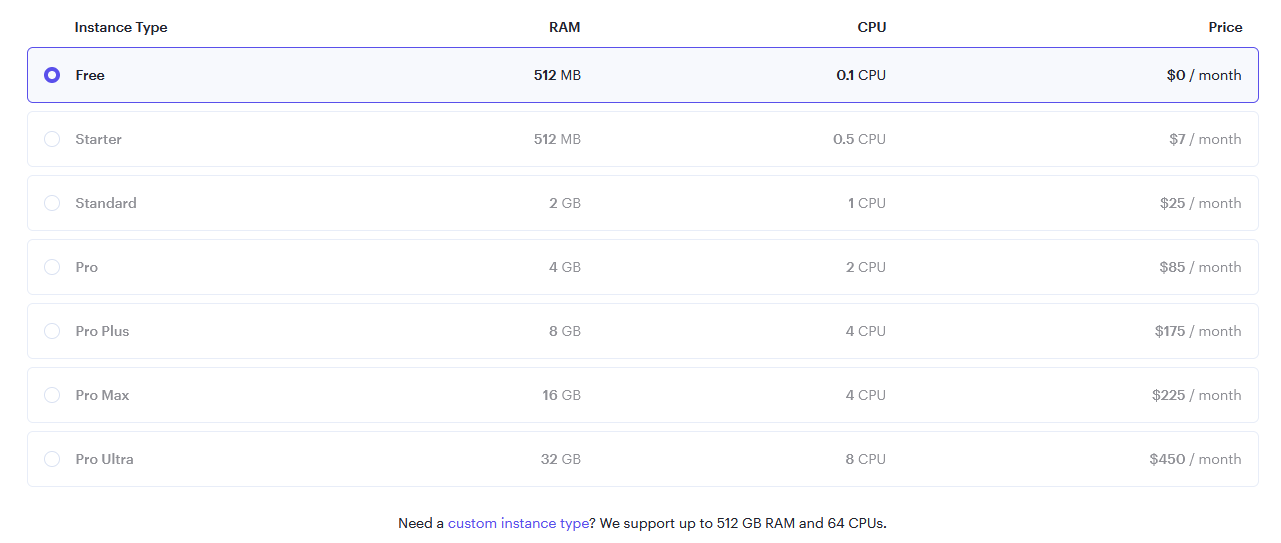
- Select an Instance
- (Optional) Add app level authorization, click Advanced and add
Environment Variable
- AIMICROMIND_USERNAME
- AIMICROMIND_PASSWORD
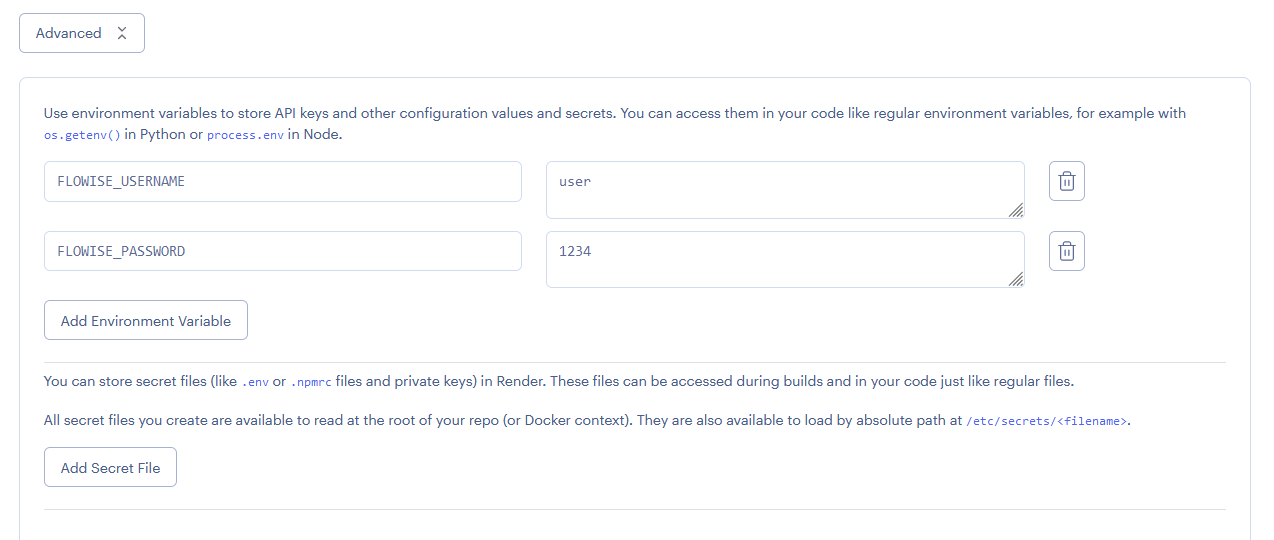
Add NODE_VERSION with value 18.18.1 as the node version to run the instance.
There are list of env variables you can configure. Refer to environment-variables.md
- Click Create Web Service


Persistent Disk
The default filesystem for services running on Render is ephemeral. aimicromind data isn’t persisted across deploys and restarts. To solve this issue, we can use Render Disk.
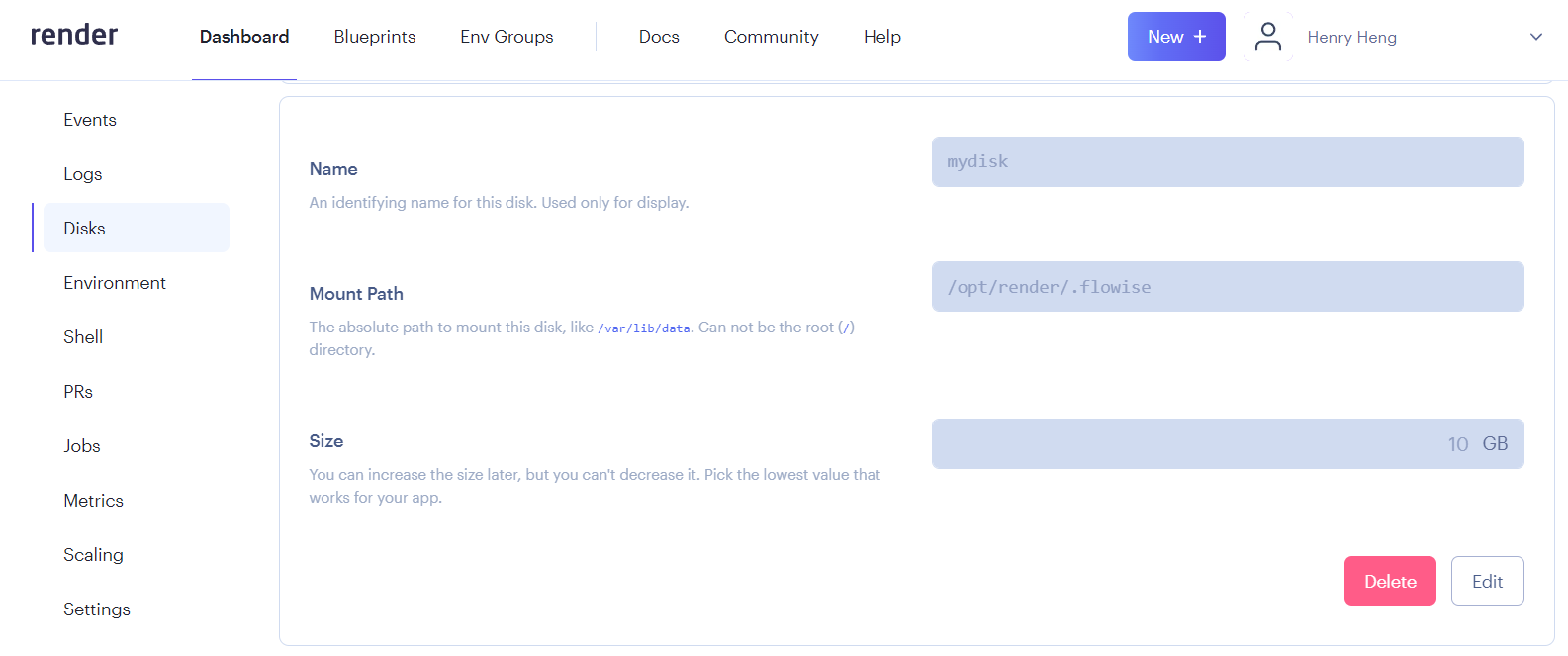
- On the left hand side bar, click Disks
- Name your disk, and specify the Mount Path to
/opt/render/.aimicromind
- Click the Environment section, and add these new environment variables:
- DATABASE_PATH -
/opt/render/.aimicromind - APIKEY_PATH -
/opt/render/.aimicromind - LOG_PATH -
/opt/render/.aimicromind/logs - SECRETKEY_PATH -
/opt/render/.aimicromind - BLOB_STORAGE_PATH -
/opt/render/.aimicromind/storage
 (5).png)
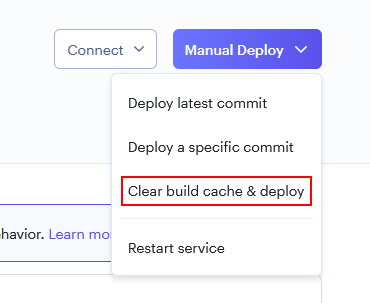
- Click Manual Deploy then select Clear build cache & deploy
- Now try creating a flow and save it in AiMicromind. Then try restarting service or redeploy, you should still be able to see the flow you have saved previously.
Watch how to deploy to Render (coming soon)